
How to Speed Up WooCommerce Backend in 5 Steps
Slow admin screens waste time and introduce errors into order and product workflows. This five-step plan shows how to speed up WooCommerce backend by measuring performance, applying quick configuration wins, cleaning the database, adding caching and server tuning, and trimming plugin overhead. Each step includes actions you can run on staging and measure so improvements are repeatable and provable.
Key takeaways
- Benchmark first. Capture repeatable admin metrics such as full page load, TTFB, PHP and database time, and query counts. Save Query Monitor or New Relic traces so you can compare before and after changes.
- Diagnose reliably. Use Query Monitor, New Relic, and browser devtools to surface different signals. Isolate causes on a staging copy with the Health Check Troubleshooting plugin so you can attribute slow SQL, hooks, and admin-ajax traffic.
- Apply quick admin wins. Disable unused widgets and notices, reduce items-per-page, and throttle autosaves to cut per-request work. Control Heartbeat and cart fragments to stop noisy background work from dragging the UI.
- Clean the database. Backup first, prune expired transients and orphan postmeta, optimize tables, and add missing indexes to eliminate slow queries. Prefer InnoDB and test HPOS migrations on staging for very large catalogs.
- Add caching and tune the stack. Use object caching (Redis), tune OPcache and PHP-FPM, and size MySQL buffers to avoid I/O and CPU bottlenecks. Pick a host that supports multiple PHP workers, Redis, and slow-query capture for better admin responsiveness.
- Slim down plugins. Conditionally load heavy extensions, replace bulky plugins with focused alternatives, and refactor what must remain. When needed, engage a developer or agency for targeted optimizations.
1. Diagnose and benchmark the admin
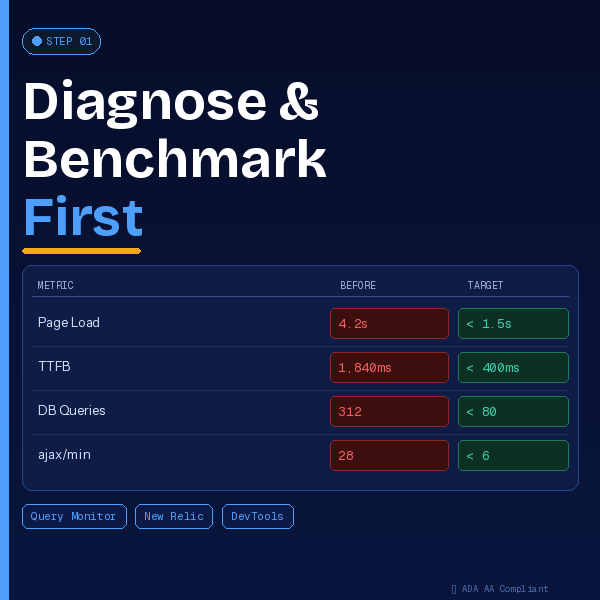
You can’t speed up WooCommerce backend without measuring it first. Capture a repeatable baseline on the admin pages that feel slow, focusing on full page load time, TTFB, PHP execution time, database query time and counts, and admin-ajax call counts. Record the items-per-page used during testing and a few server metrics such as CPU and MySQL load so results stay comparable.
Use Query Monitor, New Relic or your host’s slow-query monitor, and browser devtools to find different signals. In Query Monitor check the Queries, AJAX, PHP Errors, and Scripts tabs to identify slow SQL, noisy endpoints, and which plugin or hook is responsible. Browser network traces show TTFB, waterfall timings, and XHR counts that you should export for comparison.
Reproduce the issue on a staging copy before changing production. Use the Health Check Troubleshooting plugin to disable plugins one at a time and test a lightweight theme, then re-run Query Monitor to compare attribution. Export Query Monitor reports and take screenshots so you can prove before/after improvements and avoid chasing noise.
2. Apply quick admin wins that deliver immediate improvements
Small configuration changes often yield the biggest short-term gains. Start by disabling unused dashboard widgets and admin notices, reducing items-per-page on product and order lists, and throttling autosaves to cut PHP cycles and database queries per request. Apply one change at a time, measure with Query Monitor and browser devtools, and compare TTFB and total admin load after each tweak so you know what helped.
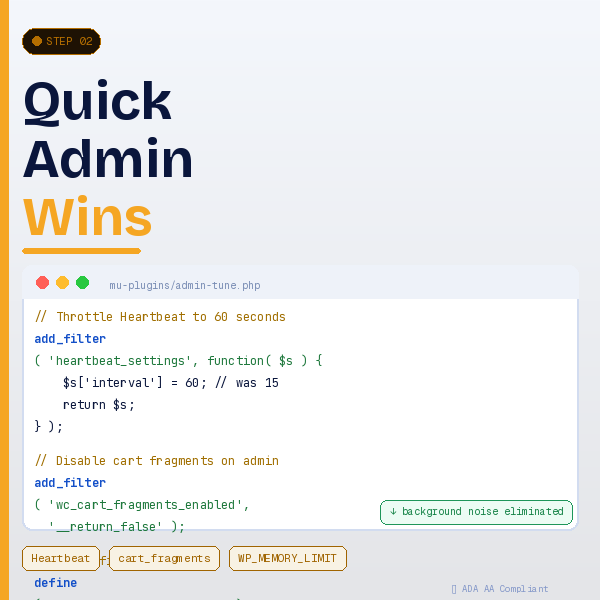
Control the Heartbeat API, cart fragments, and admin-ajax traffic to stop noisy background work from dragging the UI. Lower Heartbeat frequency to 60 seconds or scope it to specific post screens using a tiny mu-plugin or a Heartbeat-control plugin. Prevent cart fragments from loading on admin pages with add_filter(‘woocommerce_cart_fragments_enabled’, ‘__return_false’); then find noisy admin-ajax endpoints with Query Monitor and throttle or cache their responses at the code or proxy level.
Give the admin a bit more headroom and avoid caching conflicts for faster, more reliable screens. Increase WP_MEMORY_LIMIT conservatively to 256M (512M for very large catalogs) in wp-config.php and ensure logged-in wp-admin pages are excluded from full-page CDN caching. If you still see timeouts, ask hosting to add PHP workers or tune PHP-FPM to match your workload. For a practical checklist of tactical changes you can try, see Optimizing Your WooCommerce Store for Speed.
3. Clean and optimize the database for WooCommerce
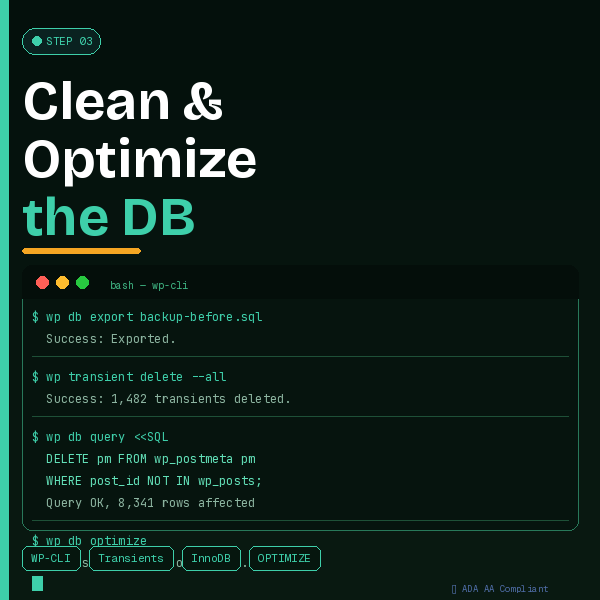
Start with a safe backup and a staging copy before touching data. Export a SQL snapshot with WP-CLI (wp db export) or take a host snapshot, and test restores on staging to avoid surprises. Include critical tables such as wp_posts, wp_postmeta, wp_options, wp_woocommerce_sessions, wp_woocommerce_order_items, and wp_woocommerce_order_itemmeta when you snapshot.
Remove expired transients and trim autoloaded options carefully to reduce backend load. Run wp transient delete --all after inspection — see this guide to automatically delete expired transients with WP-CLI if you want scripted approaches — and identify large autoloaded options with: SELECT option_name, LENGTH(option_value) FROM wp_options WHERE autoload=’yes’ ORDER BY LENGTH(option_value) DESC LIMIT 20; Review entries you recognize as plugin or theme bloat and delete only validated rows.
Prune postmeta bloat and reclaim space with targeted SQL and maintenance. Remove orphaned postmeta with DELETE pm FROM wp_postmeta pm LEFT JOIN wp_posts p ON p.ID = pm.post_id WHERE p.ID IS NULL; clear old sessions with DELETE FROM wp_woocommerce_sessions WHERE session_expiry < UNIX_TIMESTAMP(); then run OPTIMIZE TABLE on wp_postmeta and wp_options. Prefer InnoDB for WooCommerce workloads and test high-performance order storage (HPOS) on staging before migrating live traffic on very large stores — see the High Performance WooCommerce & Scale guide for deeper HPOS and scaling guidance.
4. Add object caching and tune your server stack
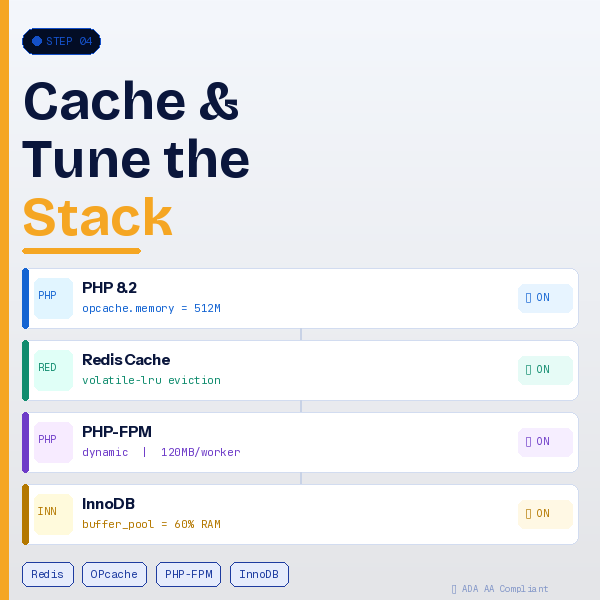
Object caching keeps frequently requested results in memory so repeated admin queries avoid the database. Target keys such as expired transients, lookup tables (SKU and parent/child relationships), and frequent option fetches used by product and order screens. Use Redis for persistence and fast lookups, configure a persistent connection, set an eviction policy like volatile-lru, and install a compatible plugin while excluding truly dynamic admin state from cache. For notes on how to set up Redis as an object cache backend for WordPress, consult community setup guides and your host’s docs.
Upgrade PHP to 8.1 or 8.2 and tune OPcache and PHP-FPM to keep execution fast under load. Set opcache.memory_consumption between 256 and 512 MB and opcache.max_accelerated_files to 100000 to 300000 depending on your plugin and theme count. For PHP-FPM use dynamic process management and size pm.max_children to match available RAM, estimating 40 to 120 MB per worker, and validate changes with a staging load test that reproduces product and orders screens.
Tune MySQL and pick current storage to avoid I/O bottlenecks. Set innodb_buffer_pool_size to roughly 50 to 70 percent of server RAM and confirm large tables like wp_postmeta use InnoDB, and use NVMe SSDs and current MySQL or MariaDB releases. For hosting, prefer managed platforms with continuous query capture or a VPS with multiple PHP workers, SSH/WP-CLI, and Redis support, since the right host often provides the biggest uplift in admin responsiveness.
5. Load fewer plugins, refactor heavy extensions and hire a pro if needed
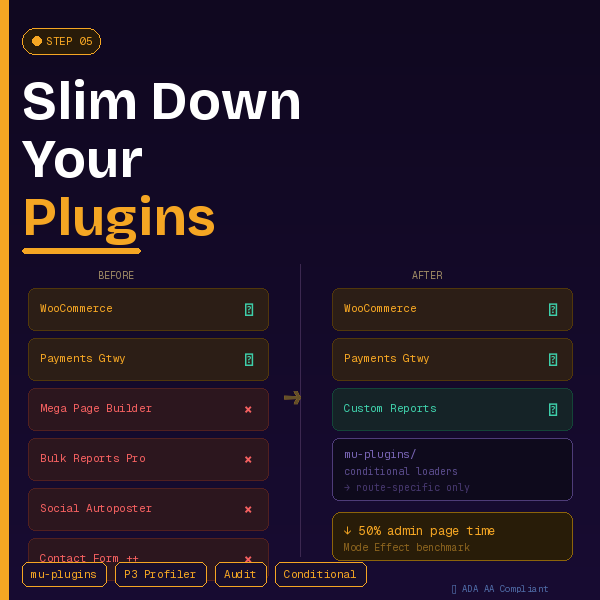
Only load the code the admin screens actually need by conditionally including plugin code on product or order routes. Turn critical utilities into mu-plugins and use early admin hooks to include heavy code only on relevant pages so dashboard widgets, scripts, and slow queries do not run on every wp-admin request. This conditional loader can cut global execution time dramatically with minimal functional change.
Replace bulky extensions with targeted alternatives or a small custom plugin when you need a single capability. Common culprits include page builders, oversized reporting plugins, and feature-heavy themes; swap them for server-side rendered blocks, lightweight themes, or scheduled SQL exports to stop admin assets and background jobs from loading unnecessarily. For example, replace a reporting plugin with a scheduled SQL export or custom endpoint and use block-based templates instead of a full builder where possible.
In one recent engagement Mode Effect reduced admin page times by roughly 50 percent on product and order screens. The work combined a plugin audit and isolation, targeted DB cleanup of transients and orphan postmeta, HPOS migration where appropriate, Redis object cache, and PHP-FPM and OPcache tuning. Deliverables included before/after Query Monitor exports, a change log and migration notes, and a list of removed or refactored plugins with custom replacements.
When you brief an agency, provide baseline screenshots and a Query Monitor export, a staging site with SSH/WP-CLI access, clear objectives (orders/products screen speed and CPU reduction), and a rollback plan so acceptance criteria are objective. Expect a fixed-price scope with a short testing window and measurable deliverables. To start improving your admin now, run a focused before/after test on a slow admin page, capture Query Monitor output, then disable one admin-heavy plugin or clear transients and re-test to see the difference. For a concise guide to using Query Monitor and interpreting results, refer to practical tutorials that walk through exports and common slow-query patterns.
Finish strong: make your admin fast and repeatable
Follow the five-step plan: benchmark first, apply low-friction admin wins, clean and optimize the database, add object caching and server tuning, and reduce plugin overhead. Prioritize changes that deliver the largest admin speed improvements and measure the impact so gains are provable and repeatable. Make performance part of your maintenance rhythm so regressions are obvious and fixes stick.